ก้อคล้ายๆ pdf แต่บีบอัดได้มากกว่า เร็วกว่า
ต้องใช้โปรแกรมของเขาเปิดดู เหมือนpdf มีปลักอินให้พร้อม
มีระบบ แปลงผ่านเวปให้ด้วย
 DjVu (pronounced "déjà vu") is a new image compression technology developed since 1996 at AT&T Labs to solve precisely that problem. DjVu allows the distribution on the Internet of very high resolution images of scanned documents, digital documents, and photographs. DjVu allows content developers to scan high-resolution color pages of books, magazines, catalogs, manuals, newspapers,historical or ancient documents, and make them available on the Web.
DjVu typically achieves compression ratios about 5 to 10 times better than existing methods such as JPEG and GIF for color documents, and 3 to 8 times than TIFF for black and white documents.
 Scanned pages at 300 DPI in full color can be compressed down to 30 to 100KB files from 25MB.. Black-and-white pages at 300 DPI typically occupy 5 to 30KB when compressed.
This puts the size of high-quality scanned pages within the realm of an average HTML page (which is typically around 50KB).
อ่านเพิ่มเติม http://djvu.org/resources/
Typical DjVu file sizes are as follows:
- bitonal scanned documents: 5 to 30KB per page at 300dpi (3 to 10 times smaller than PDF or TIFF)
- color scanned documents: 30 to 100KB per page at 300dpi (5 to 10 times smaller than JPEG).
- photos: 2 times smaller than JPEG, about the same as JPEG-2000, but the decoder/renderer is progressive and has minimal memory requirements.
- palettized images: 2 times smaller than GIF (up to 10 times if it's mostly text).
- digital (non scanned) documents: between 1 and 3 times smaller than PDF or gzipped PS (depending on the amount of pictures), but rendering, page flipping, zooming, panning are incomparably faster, and the image quality on screen desplays is much better (antialiased text, etc).
http://www.djvuzone.org/djvu/photos/jpgvsdjvu01/index.html
http://djvu.org/resources/jpgvsdjvu/comparison.html
มล.เหมาะสำหรับใช้เก็บและแสดง เอกสาร + รูปภาพ ในความละเอียดที่สูง และขนาดที่เล็ก
แต่ต้องลงซอฟแวร์เพิ่มเพื่ออ่านเอกสาร



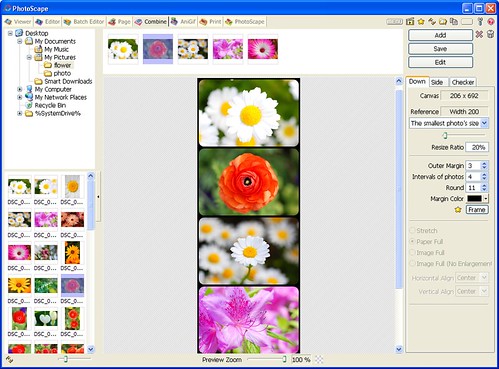
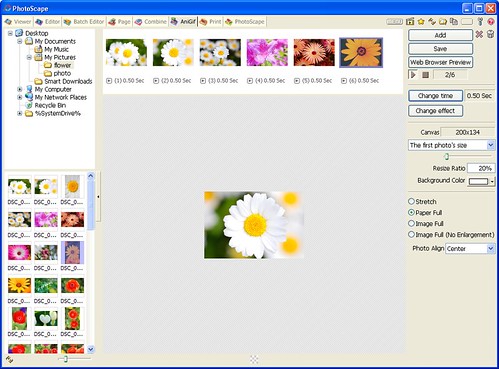

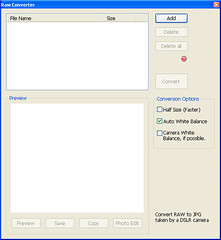
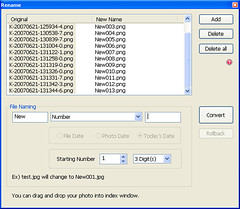
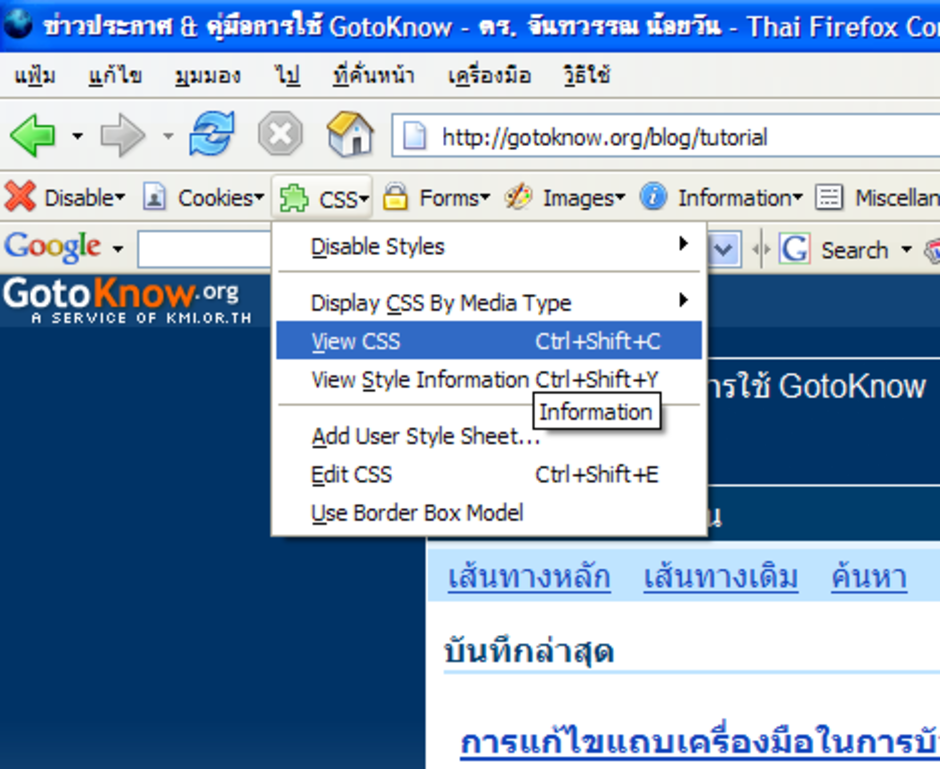
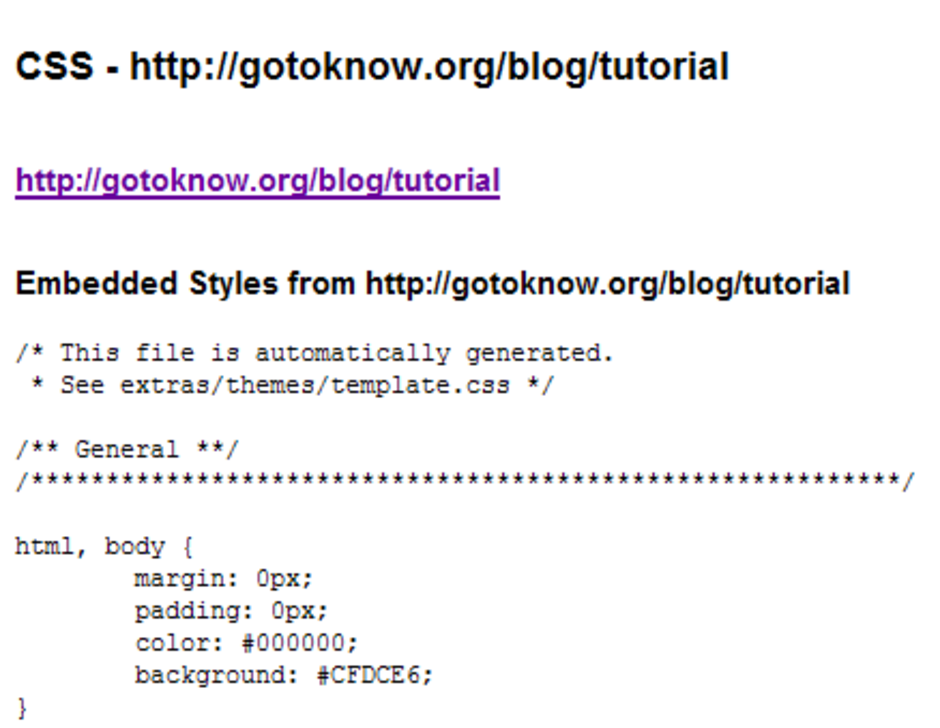
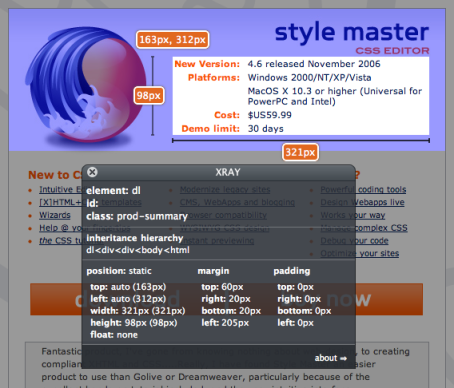 อะ อ่านเองอาจดีกว่า หุหุStep 1 XRAY works just like any other bookmarklet. To install it, normally you would just drag the box marked XRAY below to the bookmarks bar in your web browser. In some browsers bookmarklets work differently: just do whatever you would normally do to create a bookmark for whatever is linked to the XRAY box below. XRAY Step 2 Now load any page in that browser. Make sure you wait for the page to fully load. Step 3 Hit the XRAY bookmark. Again, wait for the bookmark to fully load. You'll know when this has happened because you will see a little instructions window that says "Welcome to XRAY". Step 4 Click elements on the page to XRAY them. To get rid of XRAY close the instructions window, or reload the page. What is XRAY? XRAY is a free cross browser tool that lets you see the box model in action for any element, letting you see beneath the skin of any web page.